













Looper
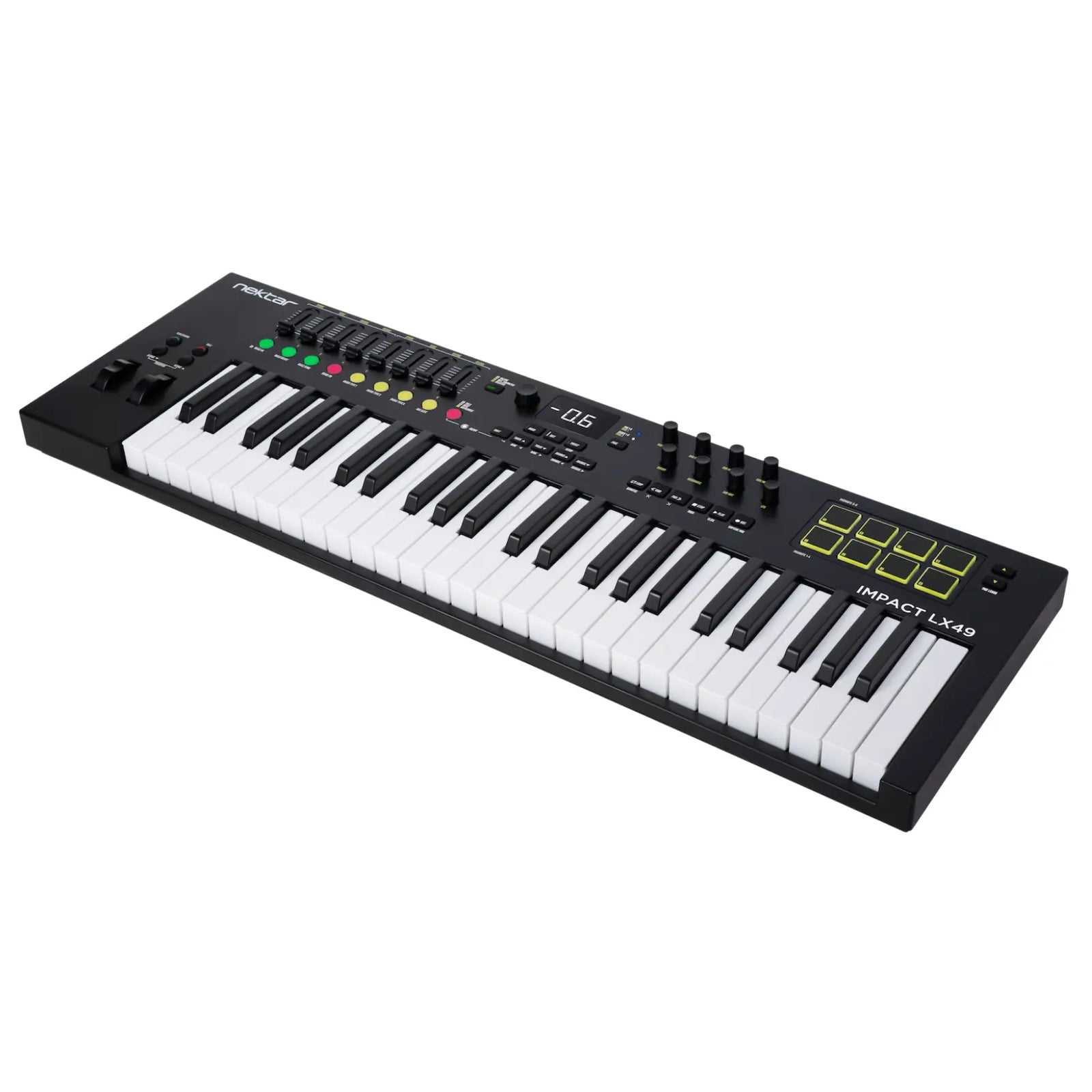
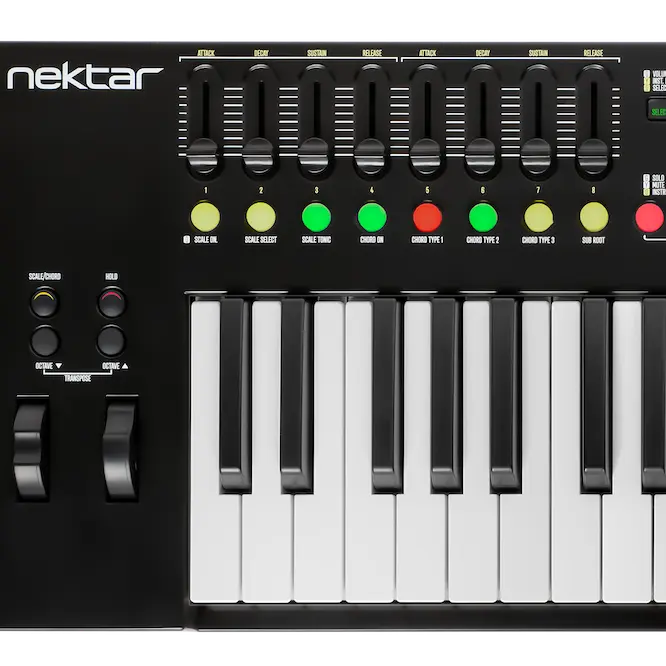
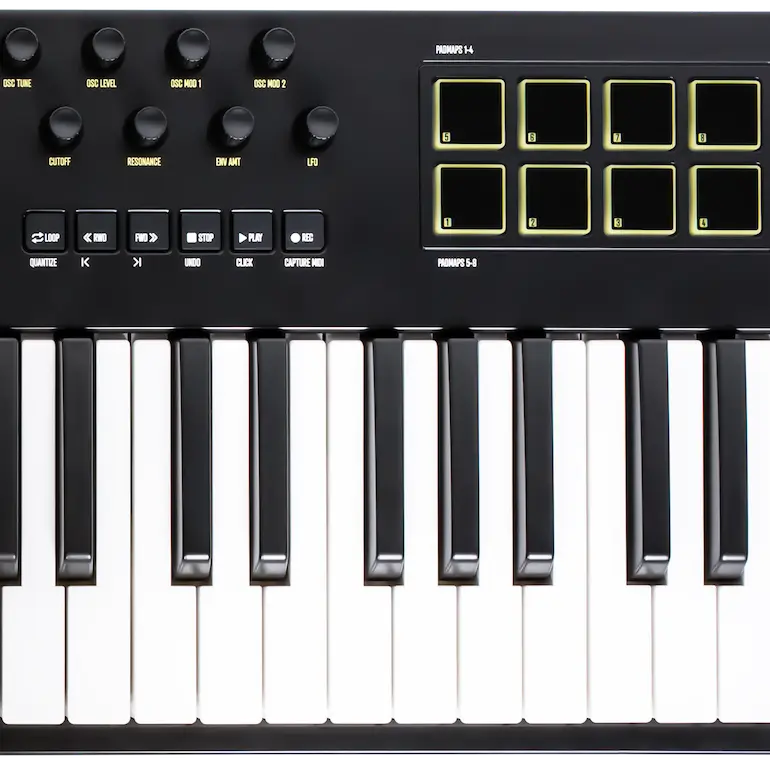
The Looper follows the play position and uses the 9 LED buttons to provide quick navigation of the timeline and setting of loop points. Press a button to move the playhead to that position. Hold a button and press another to set loop start and end.
In the video clip we move the playhead from bar 49 to the starting location, using the global encoder.
When ready, hit Loop Record.
Loop record performs several tasks in one – removing the need for a mouse during composition.
As seen in the video, Loop record first triggers recording and then on the next press plays back your recording, looped and trimmed.
Here, Loop Record is used several times to quickly create a performance with variety and interest. It would have been so much more work to stop, reset loops, adjust part lengths and play points instead!
Global control
With the global encoder you can adjust mixer channel volume and pan even when instrument mode is active or you can adjust filter cutoff and resonance while you are in mixer mode.
Best of all, you can control pretty much any parameter, including insert/effect plugins by just clicking the parameter. Click, control! It’s that easy.
Selected parameter control was first introduced in our Panorama CS12 channel strip controller which can also control at fine resolution (10 bit instead of 7 bit). So we added that option to Impact LXmk3 integration as well.
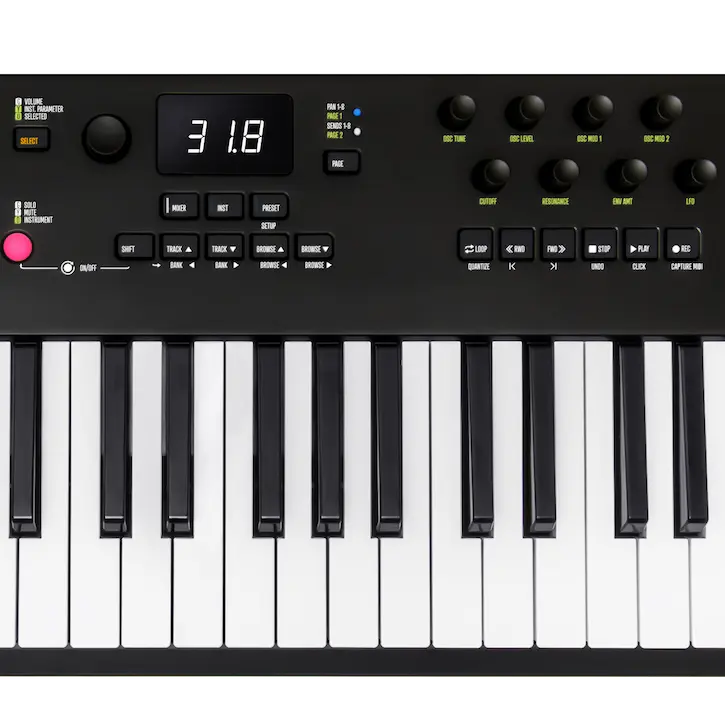
In the video’s you can see that Impact LX mk3 also display the formatted parameter values directly from the DAW. That really comes in handy when you are in the detail with fine control.
In the mix
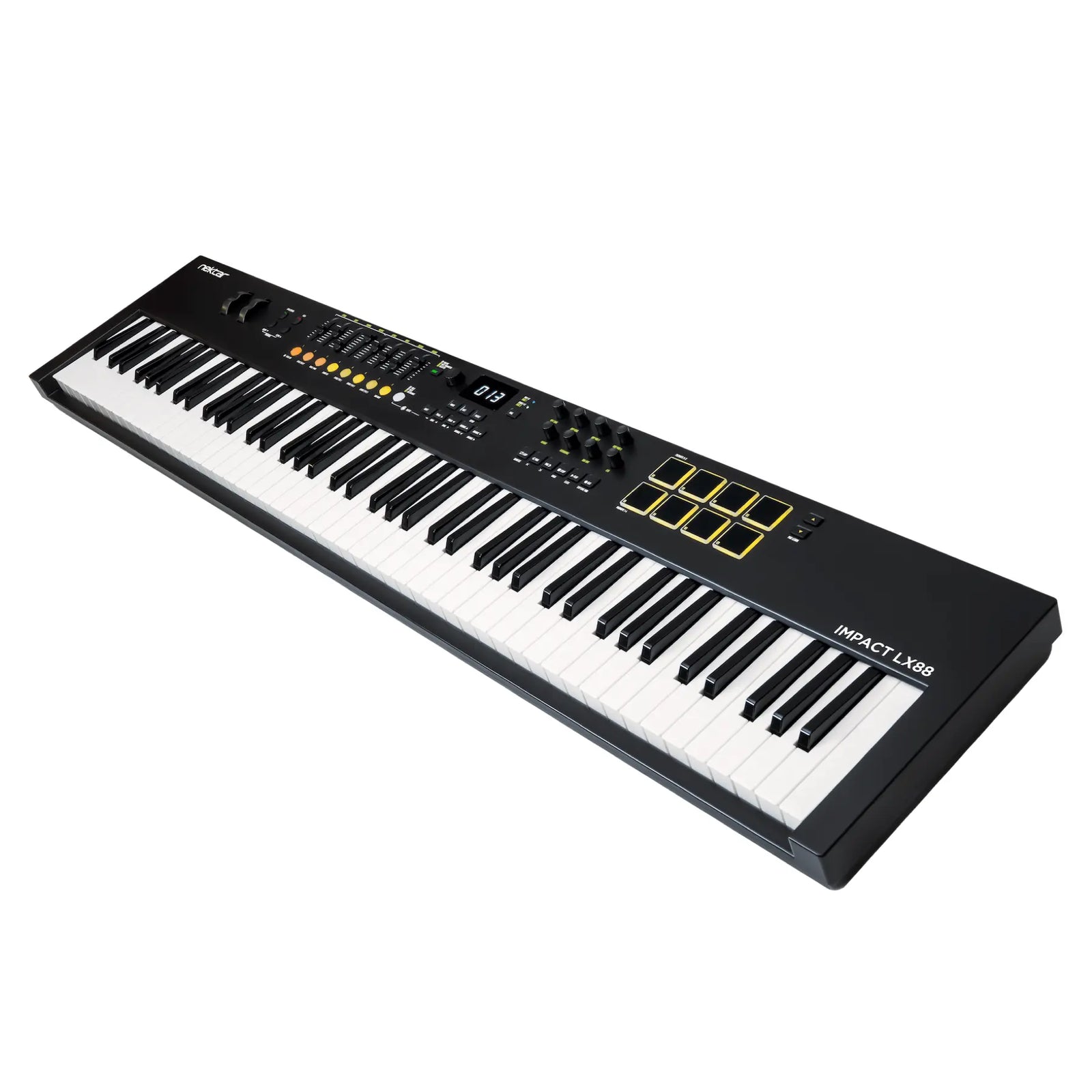
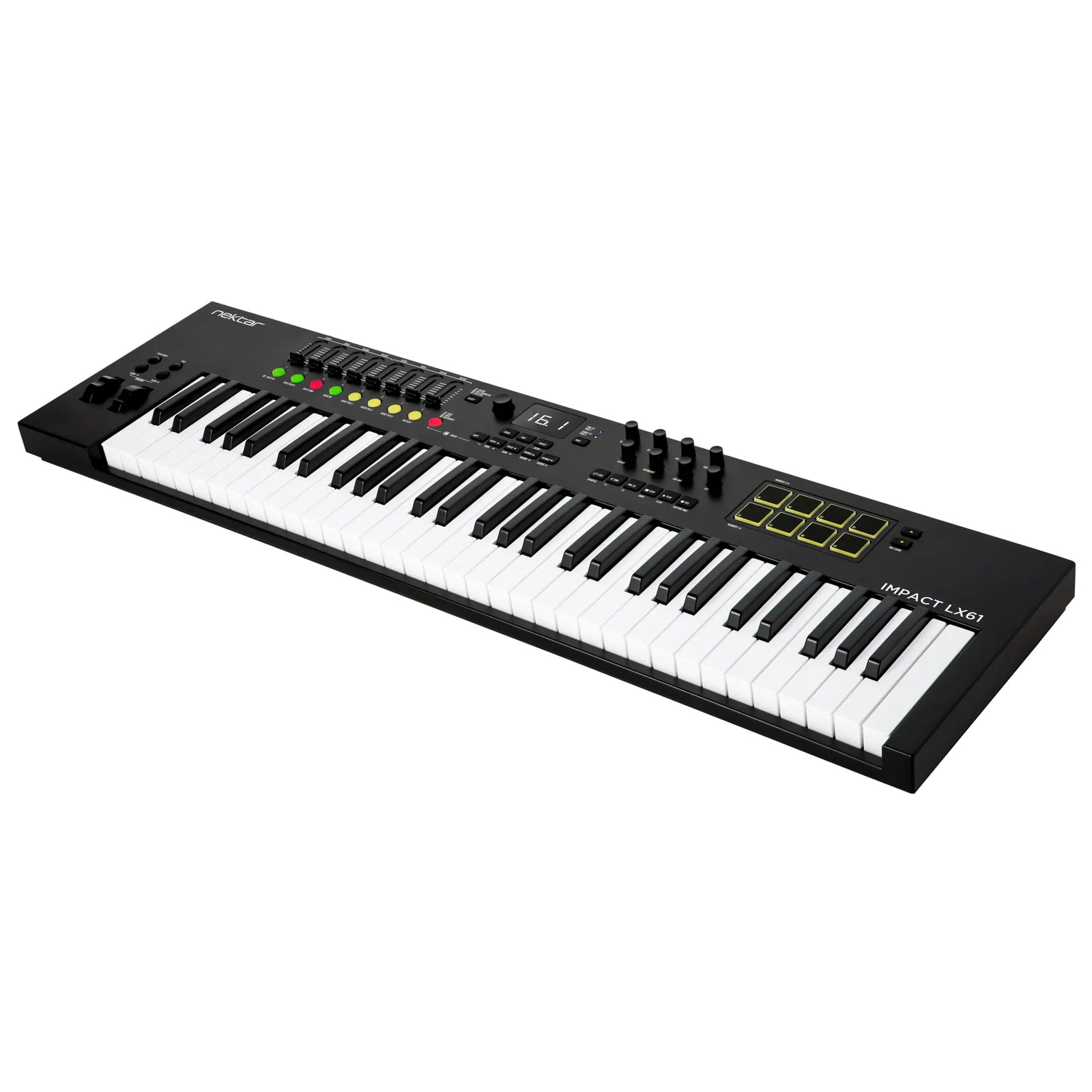
With a single button press, the Impact LX mk3 automatically maps the eight faders to the first eight channels of your DAW’s mixer. You can quickly navigate through groups of eight channels using the Bank Up/Down function, while the large global encoder controls the currently selected track.
The buttons beneath each fader correspond to their respective channels, allowing for easy muting or soloing of tracks. The eight encoders control pan for each of the eight channels and can be switched to control channel sends by pressing the page button.
To optimize your workspace, the Impact LX mk3 also includes convenient shortcuts for opening and closing your DAW’s mixer and instrument plugin windows.
Control plugin instruments
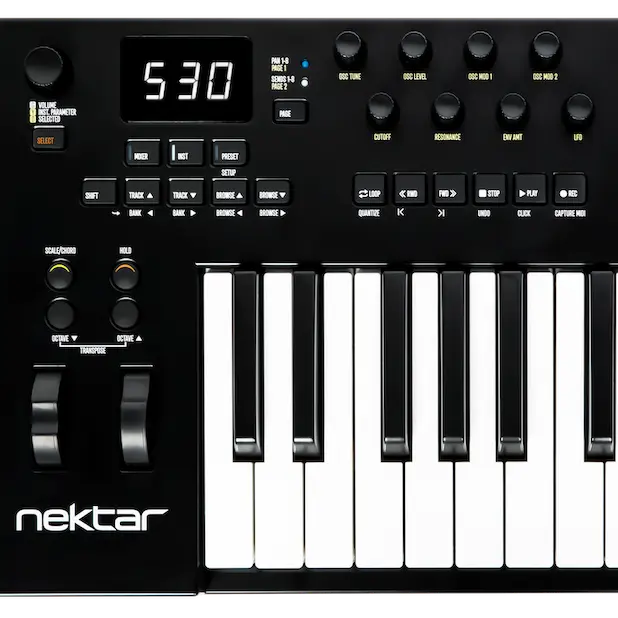
You probably already figured out that the yellow labels on LX mk3 are for use in instrument mode. We map instrument plugins with parameters that correspond to the printed labels so you should near enough always get a result.
If your DAW has quick controls, Smart Controls or macro’s Impact LX mk3 is set up to control them. If there is a parameter learn function, we have you covered there also with neat shortcuts that ensure the process is fast.
In the video we show LX mk3 controlling Korg Polysix using the default mapping.